How to Fix Core Web Vitals Image Issues (LCP)
A developer guide to fixing Largest Contentful Paint (LCP) and Cumulative Layout Shift (CLS) issues caused by unoptimized images on your website.
Google’s Core Web Vitals (CWV) are key search ranking factors that measure the real-world user experience of your pages. Among these metrics, Largest Contentful Paint (LCP)—which measures visual load speed—and Cumulative Layout Shift (CLS)—which tracks visual stability—are frequently degraded by unoptimized images. If your website has flagged images as the source of slow loading speeds in Google Search Console, this technical guide outlines how to fix LCP issues using our client-side compressor or our next-gen AVIF converter to shrink payloads below the 100KB mobile budget.
Identifying LCP Image Bottlenecks
Largest Contentful Paint measures the time it takes for the largest visual element above the fold (the viewport area visible on load) to render. On most landing pages and articles, the LCP element is a hero image, header graphic, or product showcase.
To identify if your LCP element is an image:
- Open Chrome DevTools and navigate to the Lighthouse or Performance panel.
- Run a mobile analysis.
- Locate the “Largest Contentful Paint element” section in the report diagnostics.
- If the LCP element is an
<img>tag or a CSS background image, inspect its load phases: Document Request, Queue Delay, Load Duration, and Render Delay.
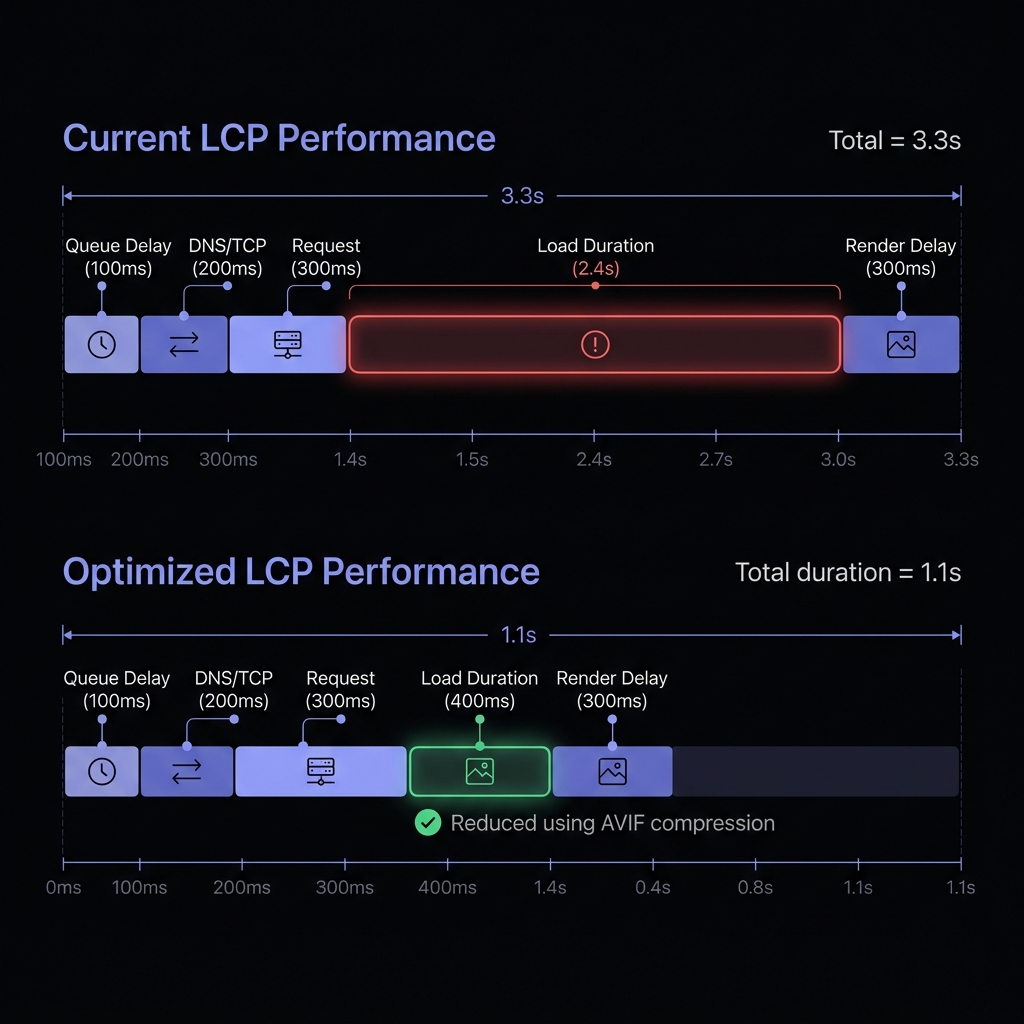 Figure 3: Breakdown of Largest Contentful Paint load phases showing how compression shaves off Load Duration.
On slow sites, the “Load Duration” (time to download the bytes) accounts for the largest share of LCP lag, indicating that the image files are simply too heavy for mobile networks.
Resizing and Modern Codecs (WebP/AVIF)
The most direct way to fix image-related LCP delay is reducing the transfer size of the asset. This requires a two-pronged approach:
- Serve Correct Resolutions: Never serve a 3000px wide camera raw asset inside a layout box that displays at 400px wide on mobile devices. Downscale images to their maximum display dimensions before compressing.
- Implement Next-Gen Encodings: Convert legacy JPEGs and PNGs to WebP or AVIF. AVIF provides up to 50% savings over JPEG, which translates to a massive drop in download latency, directly accelerating the LCP timeline.
Use local tools like CompressNeo’s bulk image compressor to run bulk operations offline, saving your assets into optimized formats and target resolutions before uploading them to your CMS.
AVIF Next-Gen Format Preset
Compile high-efficiency AVIF images for maximum bytes savings on mobile networks.
Optimizing Delivery: CDN, Cache, and HTML Attributes
Beyond file compression, how the browser discovers and downloads your LCP image heavily impacts visual load speeds:
- Preload Critical Hero Assets: By default, browsers prioritize scripts and CSS sheets, discovering images only after parsing the HTML. To jumpstart hero image downloading, declare a preload tag in your
<head>:<link rel="preload" as="image" href="/images/hero-optimized.avif" type="image/avif" /> - Bypass Lazy Loading Above the Fold: Lazy loading (
loading="lazy") tells the browser to delay loading an image until it is near the viewport. While this is great for below-the-fold assets, applying it to your hero image increases render delay. Always setfetchpriority="high"and omitloading="lazy"on above-the-fold images:<img src="hero.avif" fetchpriority="high" alt="Primary Brand Showcase" /> - Deploy Edge Delivery Cache (CDNs): Deliver images from a content delivery network (CDN) located close to your users to minimize network hops and connection setup delays.
Eliminating Layout Shifts (CLS) from Images
Cumulative Layout Shift measures unexpected visual movement on a page. Images that load without predefined dimensions cause content below them to jump down, triggering a CLS penalty.
To guarantee visual layout stability:
- Always Declare Width and Height: Set
widthandheightattributes directly on the<img>element. The browser uses these attributes to calculate the image’s aspect ratio and reserve the correct space before the image file downloads:<img src="logo.png" width="200" height="80" alt="Brand Logo" /> - Apply Aspect-Ratio in CSS: For responsive grids, use CSS aspect-ratio properties to maintain visual boxes:
img.responsive-card {
  width: 100%;
  height: auto;
  aspect-ratio: 16 / 9;
}
Monitoring Core Web Vitals Performance
Remediation requires ongoing validation. After implementing compression, preloads, and dimensions:
- Monitor the Core Web Vitals report in Google Search Console to track field performance data.
- Run automated PageSpeed Insights audits weekly to catch regressions before they impact search rankings.
- Integrate compression into your local design and build process to prevent unoptimized assets from launching.