How to Reduce Image File Size Without Losing Quality
A comprehensive guide to optimizing images for the web. Learn the differences between lossy and lossless algorithms and how to maintain pixel-perfect visuals.
Images are the single largest contributor to page weight on the modern web, often accounting for over 60% of total transferred bytes. Delivering high-quality visual experiences is critical for user engagement, but unoptimized files lead to slow page loads, high bounce rates, and poor search engine rankings. Fortunately, modern compression technologies make it possible to drastically reduce image file sizes while maintaining indistinguishable visual quality. Use our free client-side image compressor or bulk image compressor to easily shrink your payloads directly in your browser.
Understanding Lossy vs. Lossless Compression
To optimize images effectively, you must understand the difference between the two primary classes of compression algorithms: lossy and lossless.
- Lossy Compression: This method achieves massive file size reductions (frequently up to 70% or 80%) by permanently discarding visual data that the human eye is less sensitive to—such as subtle shifts in color detail (chroma subsampling). High-quality lossy compression uses mathematical transforms (like the Discrete Cosine Transform in JPEG encoding) to simplify pixel grids. When configured correctly (such as setting quality between 75% and 85%), lossy compression results in files that are a fraction of their original size with no perceptible difference in visual clarity.
- Lossless Compression: Lossless compression algorithms reduce file size without discarding a single pixel of visual information. Instead, they optimize how the image data is stored, removing redundant metadata (like EXIF camera profiles, coordinates, and software tags) and using efficient run-length encoding. The decompressed image is mathematically identical to the original raw file. While lossless compression maintains pixel-perfect fidelity, its compression ratio is limited—typically yielding only 10% to 40% size reductions.
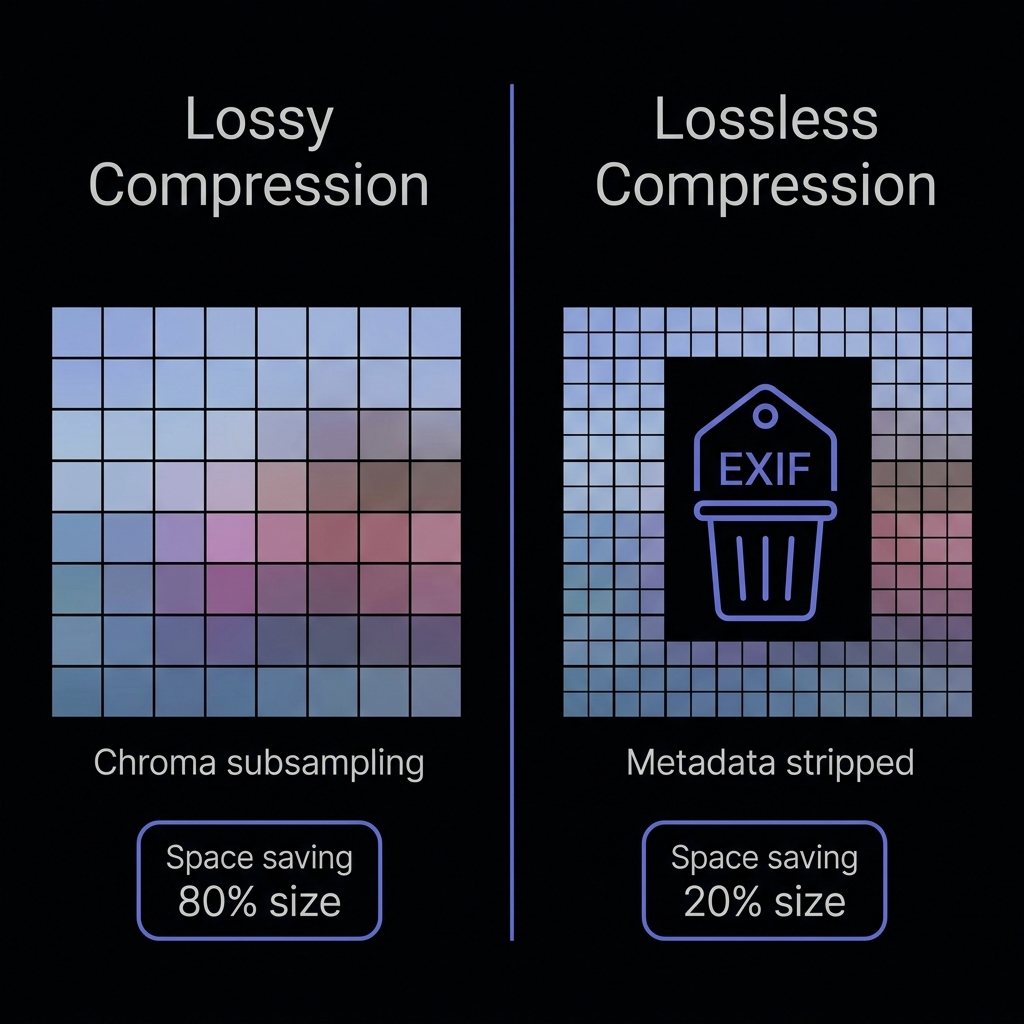 Figure 4: Lossy algorithms selectively discard invisible chroma detail, while Lossless algorithms compress meta structures without modifying pixels.
For general web delivery, lossy compression is the industry standard because it provides the best balance between speed and quality. Lossless compression should be reserved for assets that require perfect color accuracy and sharpness, such as logos, line art, and typography.
Choosing the Right Image Format (WebP, AVIF, JPEG, PNG)
Selecting the appropriate image format is a foundational step in image optimization. Modern next-generation formats offer superior compression efficiency compared to legacy types:
- AVIF (AV1 Image File Format): AVIF is the absolute gold standard for web performance in 2026. Derived from the AV1 video codec, AVIF offers up to 50% better compression than JPEGs and 30% better than WebP. It supports 10-bit color depth, transparency, and animation. AVIF is highly recommended for high-resolution graphics, complex gradients, and websites targeting modern mobile devices.
- WebP: Developed by Google, WebP provides excellent lossy and lossless compression. WebP images are roughly 26% smaller than PNGs and 30% smaller than JPEGs. It is supported by all major modern browsers and serves as the perfect fallback when AVIF encoding is unavailable.
- JPEG/JPG: The traditional format for photographs. While JPEGs do not support transparency, they handle complex photographic gradients well. However, they lack the compression efficiency of WebP and AVIF.
- PNG: The legacy standard for lossless web graphics. PNG is essential for graphics requiring alpha channel transparency and pixel-perfect layouts, but it results in extremely heavy files. In most cases, legacy PNGs should be converted to WebP or AVIF to save bandwidth.
Lossless Compression Mode
Strip metadata and optimize Huffman maps without touching pixel data. Ideal for corporate logos.
How to Balance Resolution and File Weight
High-resolution screens (like Apple’s Retina displays) require higher density images, but serving raw 4K images to a mobile device is a major performance bottleneck. Finding the right balance requires a systematic approach:
- Resize Before Compressing: Never upload an image that is larger than the maximum display size. If a hero image displays at 1200px wide on desktop, resize the source file to exactly 1200px (or 2400px for Retina display zoom support) before running it through a compressor.
- Target Specific File Sizes: Use budget-based optimization. For example, keeping standard blog headers under 100 KB and product thumbnails under 30 KB ensures that pages load in under 1.5 seconds.
- Leverage Responsive Images: Use the HTML5
<picture>element andsrcsetattributes to serve different image resolutions based on the user’s screen size and device capabilities, avoiding unnecessary byte transfers on mobile connections.
Tools for Client-Side vs. Server-Side Optimization
Optimizing images can be integrated at different stages of the development lifecycle:
- Client-Side Compression: Tools like CompressNeo run entirely in the browser using Web Workers and WebAssembly. You can use our specialized offline image compressor or bulk image compressor to optimize multiple formats without network delays. Since files are processed locally, client-side tools provide absolute privacy (no files are uploaded to cloud servers), require no server maintenance, and bypass upload bandwidth delays. This is ideal for content creators, bloggers, and designers managing queues manually.
- Server-Side Pipelines: Dynamic image CDNs (like Cloudflare Images, Imgix, or Cloudinary) compress images on-the-fly as they are requested. While server-side pipelines automate responsive image delivery, they require ongoing subscription costs and expose user images to cloud processing.
Checklists for Launching Fast Web Pages
Before publishing any web page, run through this simple checklist to ensure your images are fully optimized:
- Correct Format: Are all photographs in AVIF or WebP format? Are logos and graphics in SVG or PNG format?
- Scale Checked: Are the pixel dimensions matches for the layout, or are you serving oversized resolutions?
- Metadata Stripped: Have all camera EXIF profiles, GPS coordinates, and editing headers been stripped?
- File Budgets Met: Are all hero elements under 100 KB and supporting layouts under 50 KB?
- Lazy Loading Enabled: Are below-the-fold images configured with
loading="lazy"?